The player and the network matter just as much as the IPTV server. We recommend the Amazon Fire TV Stick 4K Max because it combines tri-band Wi-Fi 6E, 16 GB of storage, and modern hardware video decoding in a small device that is easy to maintain. That combination makes it one of the best platforms for a Firestick IPTV setup, especially when you want smooth 4K playback on TiviMate, Smarters Pro, or another M3U playlist player.
If you are moving from an older Firestick, the difference is significant. While the Fire TV Stick Lite has a quad-core 1.7 GHz CPU and 1 GB of RAM, the Amazon Fire TV Stick 4K Max adds a faster 2.0 GHz CPU, 2 GB of RAM, and 16 GB of storage. This extra headroom helps with bigger playlists and heavier EPG loads.
Don't let a frozen screen ruin the match.
Switch to the World's #1 Premium Server today.
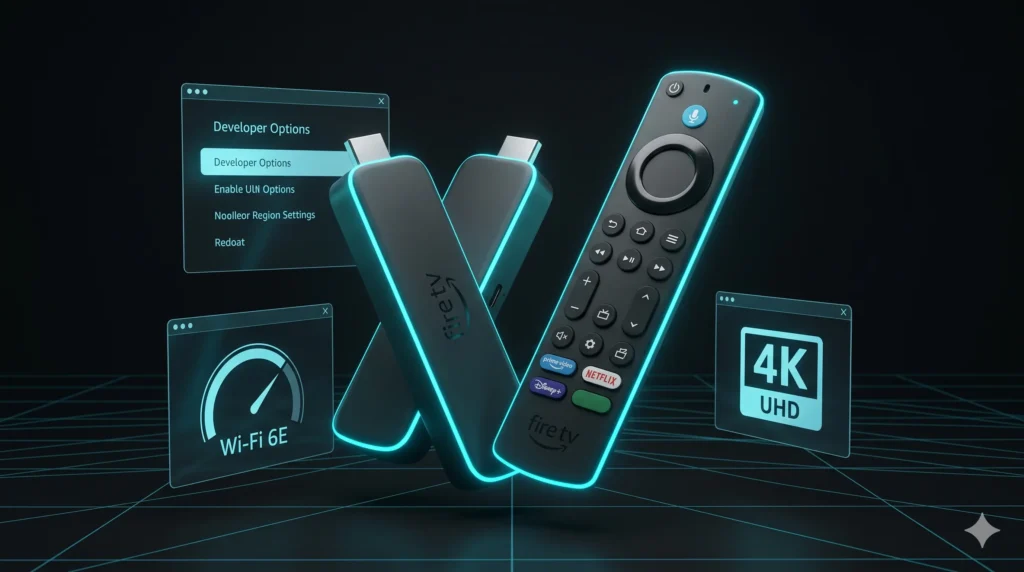
Table of Contents
Developer Options: Unlocking Your Firestick IPTV Setup
Before we install anything, we must unlock the settings that make sideloading IPTV apps possible. On newer 2026 software, the Developer Options Firestick 2026 menu is hidden by default.
How to reveal Developer Options in 2026:
- Open Settings > My Fire TV > About.
- Highlight the first item in the list.
- Press the remote’s Select button seven times.
- Once unlocked, Developer Options will appear under the My Fire TV menu.
Next, you must enable Install Unknown Apps. Navigate to Settings > My Fire TV > Developer Options > Install Unknown Apps, then turn permission on for the app you will use to install APK files.
Using the Downloader App for Firestick
For most users, the easiest route for sideloading IPTV apps is the Downloader app for Firestick. This tool lets you enter URLs or short codes to download and install APK files directly.
Step-by-Step Installation:
- Search the Amazon Appstore for “Downloader” and install the genuine version.
- Open Downloader and grant it storage permissions.
- Enter the direct APK URL or short code supplied by your provider.
- Install the APK file once the download is complete.
- Delete the APK file afterward to save space on your 16 GB stick.
Implementing the Best IPTV Settings for Firestick
This is where we squeeze better real-world performance out of the device by reducing background clutter and optimizing privacy.
1. Privacy Toggles for Better Speed
Amazon’s system processes data in the background, which can slow down streams. We recommend these changes:
- Go to Settings > Preferences > Privacy Settings.
- Turn off Device Usage Data and Collect App Usage Data.
- Turn off Interest-based Ads.
2. Manual Background App Control
Background memory usage affects app start times. Before a big match, go to Settings > Applications > Manage Installed Applications, select unused apps, and press Force Stop to free up RAM.
3. Player Optimization
Inside your chosen app, use these best IPTV settings for Firestick:
- Enable Hardware Decoding first for smoother 4K.
- Keep buffer settings moderate to balance zapping speed and stability.
- Load only the channel groups you actually watch to keep the UI snappy.
VPN for Firestick IPTV: Bypassing Throttling
A VPN for Firestick IPTV can help when your ISP shapes streaming traffic. The VPN tunnel encrypts your traffic, making selective throttling much harder for the ISP. We suggest using nearby VPN servers to avoid adding unnecessary latency to your live TV experience.
Wi-Fi 6E vs. Ethernet for 4K Playback
The Amazon Fire TV Stick 4K Max supports tri-band Wi-Fi 6E (2.4/5/6 GHz) and 10/100 Ethernet via an external dongle.
- Use Ethernet if you care about maximum reliability for live sports.
- Use 6 GHz Wi-Fi if your router supports Wi-Fi 6E and the stick is nearby.
- Avoid 2.4 GHz for 4K streaming as it is too crowded for high-bitrate UHD content.
Fire TV Device Comparison: Lite vs. 4K Max
| Model | CPU | RAM | Wi-Fi | Storage |
| Fire TV Stick Lite | Quad-core 1.7 GHz | 1 GB DDR4 | Dual-band Wi-Fi 5 | 8 GB |
| 4K Max (2nd Gen) | 4x Cortex-A55 2.0 GHz | 2 GB LPDDR4 | Tri-band Wi-Fi 6E | 16 GB |
(Source:)
Essential Maintenance Checklist
To prevent slowdowns, follow this simple maintenance routine:
- Clear the IPTV app cache regularly via the Applications menu.
- Restart the stick every few days to clear system RAM.
- Trim your playlist to remove countries or VOD sections you never watch.
- Refresh the EPG only as often as necessary to reduce data load.
A cleaner playlist almost always means faster zapping and a more stable interface. The Amazon Fire TV Stick 4K Max is a powerful tool, but the right Firestick IPTV setup is what truly saves you from hours of frustration.